
Once you've dragged the EA onto a chart, you'll see a small icon in the top-right corner:
Double-click on the EA icon to open the settings window. This will bring up the "Inputs" tab where you can modify all parameters.
Make sure to double-click, not single-click. A single click won't open the settings.
After double-clicking, you'll see the settings window. Click on the "Inputs" tab to access all the EA parameters:
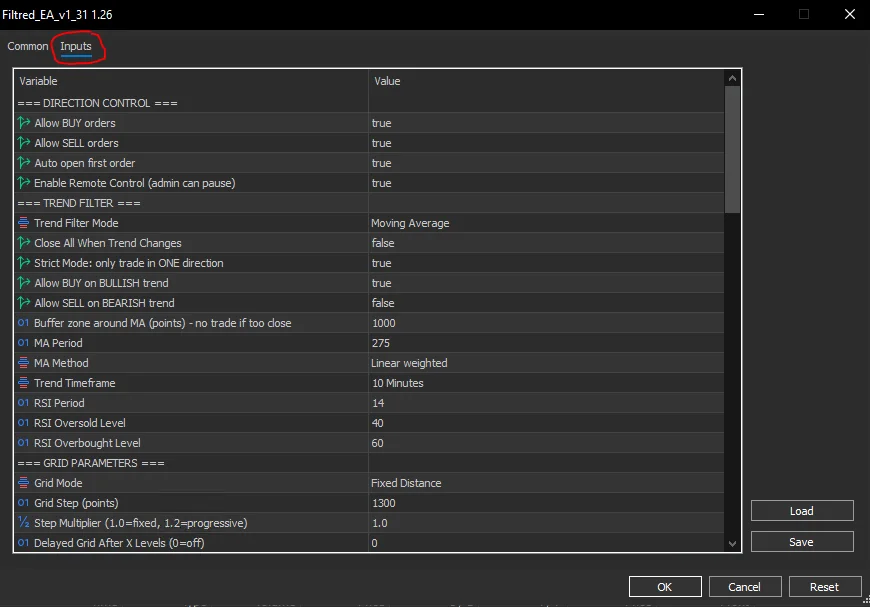
What You Can Do Here
- Modify Parameters: Change any value by clicking on it in the "Value" column and typing a new value.
- Load a Preset: Click the "Load" button to load a different configuration file (.set file) like
onlybuy.setorunder5k+++V2.set. - Save Your Settings: Click the "Save" button to save your current configuration to a .set file for later use.
- Reset to Default: Click the "Reset" button to restore all parameters to their default values.
📚 Settings Documentation
For detailed information about each parameter, check the settings documentation for your EA:
Loading a Different Configuration
To switch from the default configuration to another preset (like onlybuy):
- Double-click the EA icon on your chart
- Go to the Inputs tab
- Click the Load button (bottom right)
- Navigate to your presets folder and select the desired
.setfile - Click OK to apply the new settings
After loading a new configuration, make sure to click OK to apply the changes. Clicking "Cancel" will discard all changes.
Available Presets
The following preset configurations are available:
| Preset Name | Description | Best For |
|---|---|---|
under5k+++V2.set |
Default balanced configuration | Accounts under $5,000 |
onlybuy.set |
Buy-only with stricter trend filter | Bullish market conditions |
sniper.set |
Gap trading configuration | Sniper EA strategy |